
How to Open RDP or SSH Ports Using EUGameHost's Firewall Panel
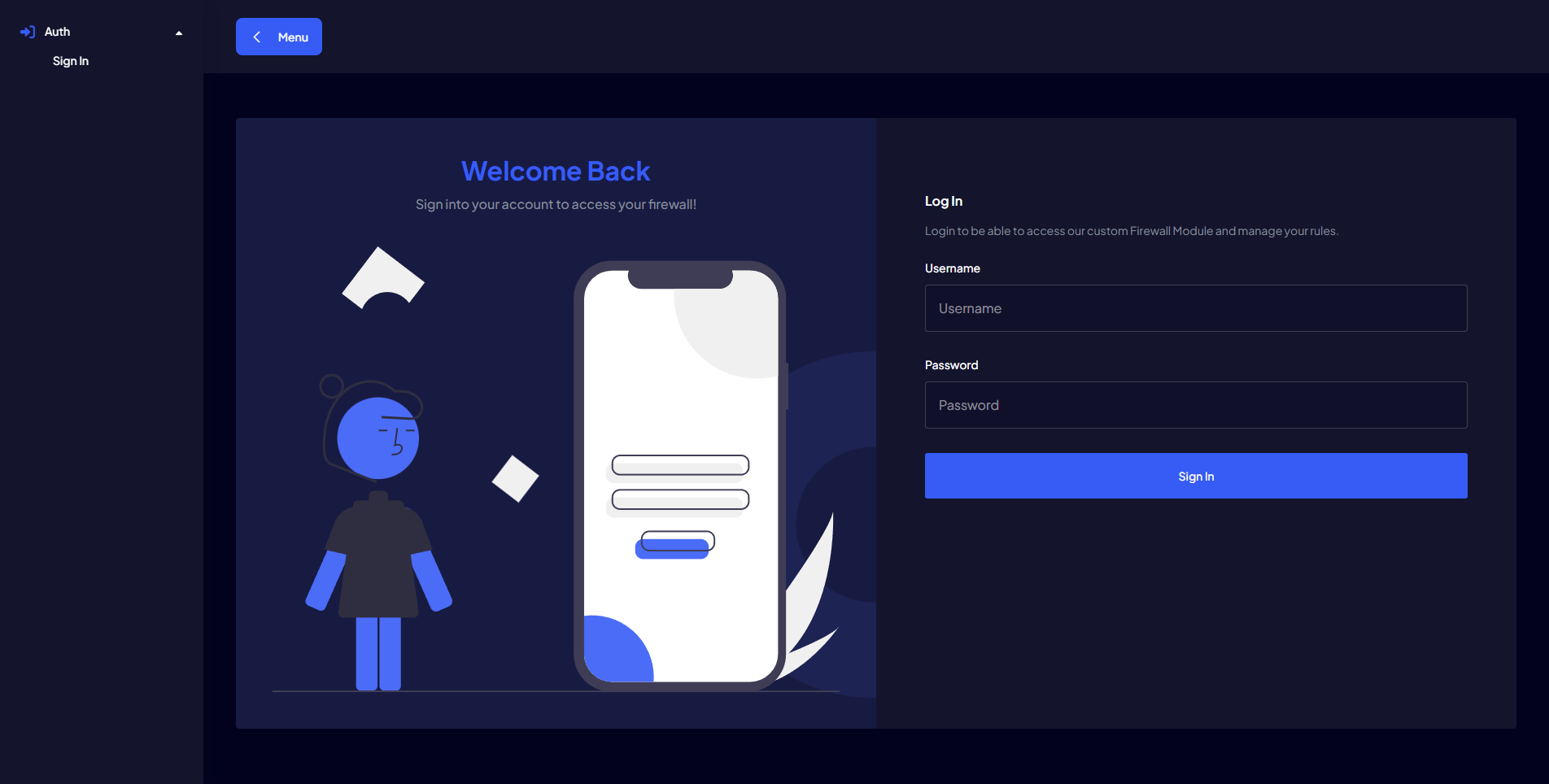
This guide explains how to allow remote access to your server using RDP (Remote Desktop Protocol) or SSH (Secure Shell) by opening the required ports through the EUGameHost Edge Firewall Manager.
What You’ll Need
- An active VPS, VDS or dedicated server with EUGameHost
- Access to the EUGameHost Edge Firewall Manager
- The port to open (default: 22 for Linux SSH, 3389 for Windows RDP)
Accessing and Setting up the Firewall Manager
- First head to www.eugamehost.com/clients/ and login to our client area
- From there you'll see a "Firewall Manager" button on the left hand side
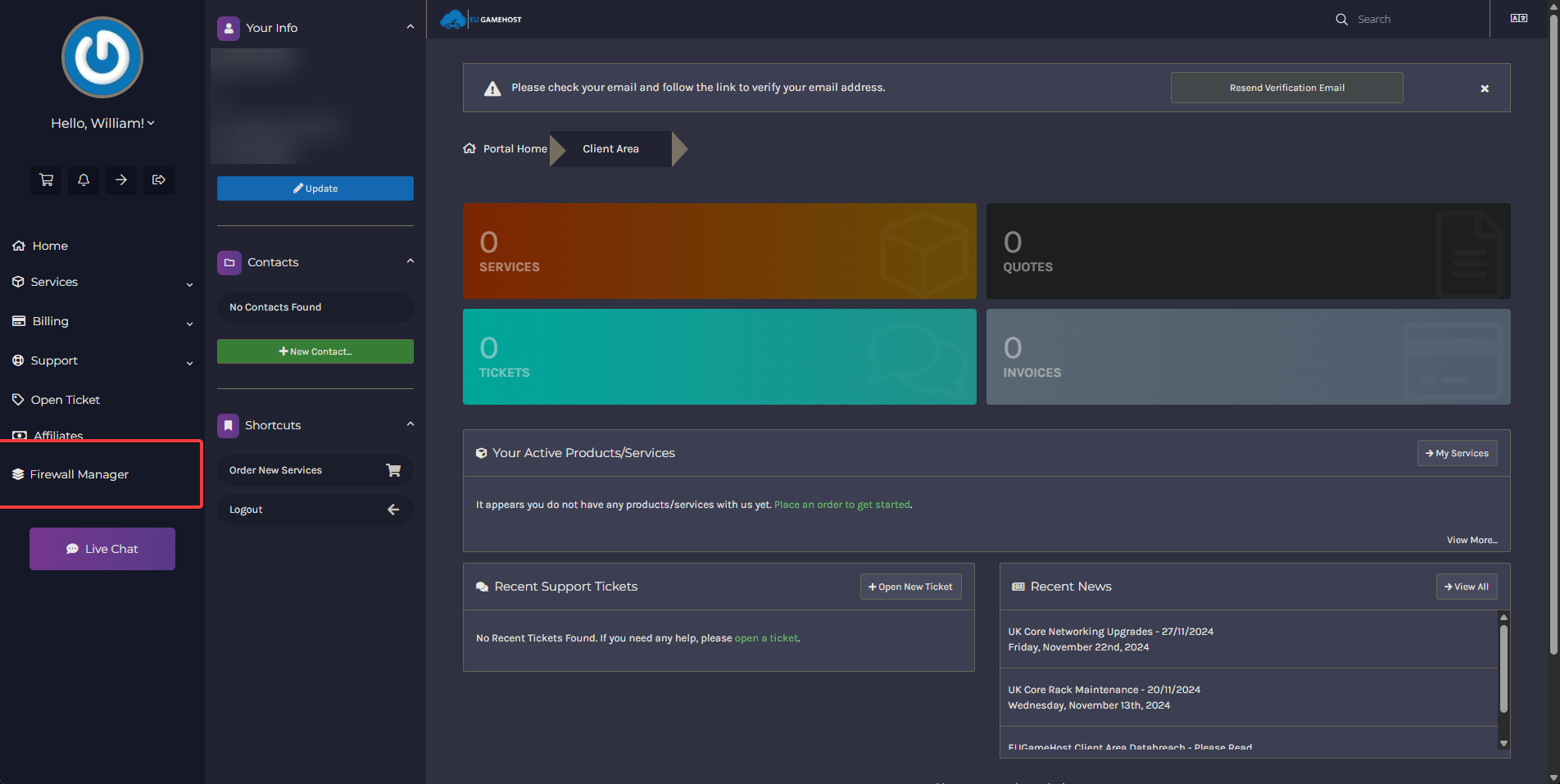
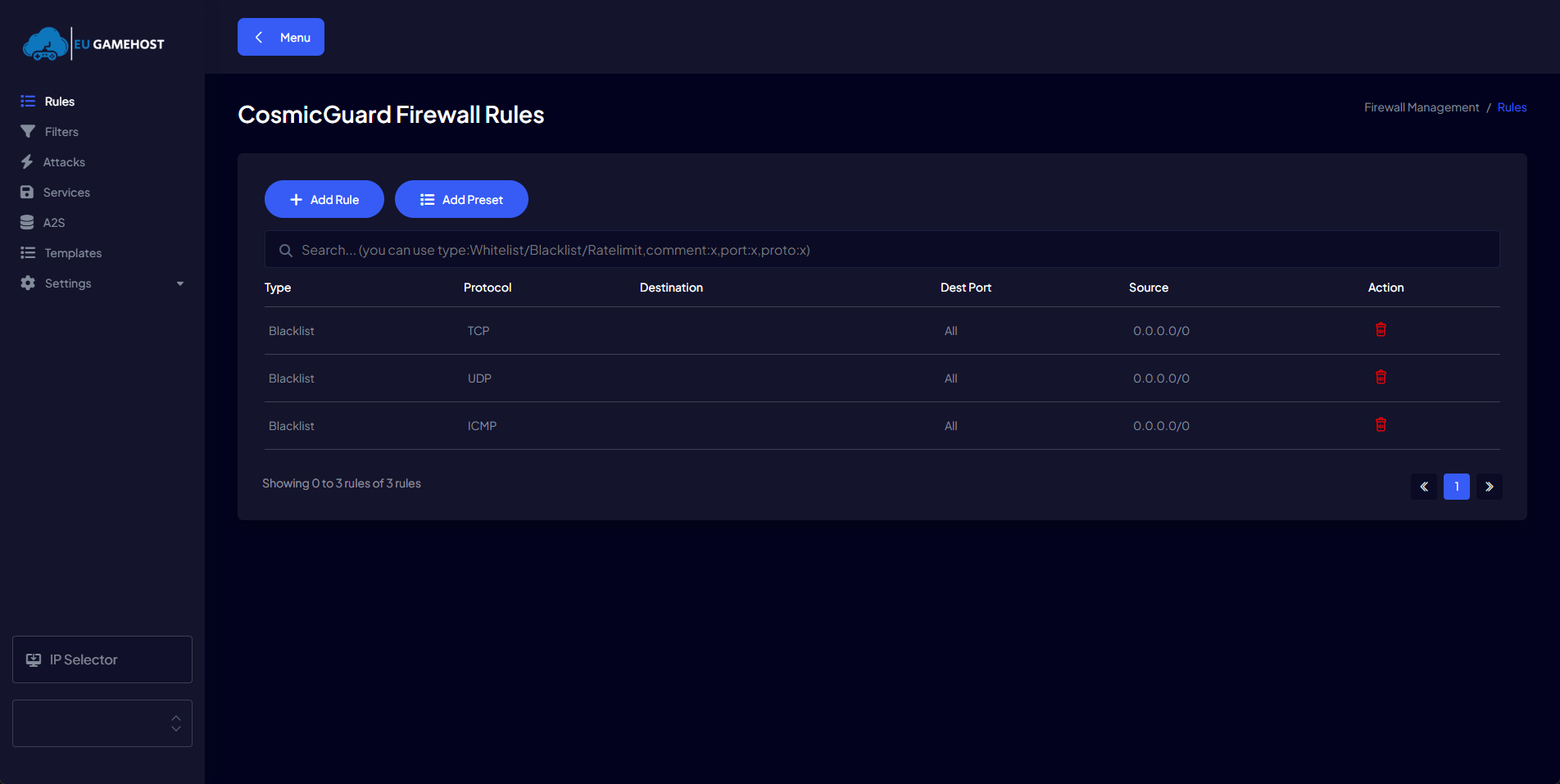
Once you've pressed the firewall manager button, you should be taken to the manegement panel for your IP(s).
You'll now see something like this:
From here, press on the "Filters" tab on the left hand side. Once you've done this, you'll see a "Add Filter" button, from there you'll see a dropdown menu, a protocol and the "Destination Port" box.
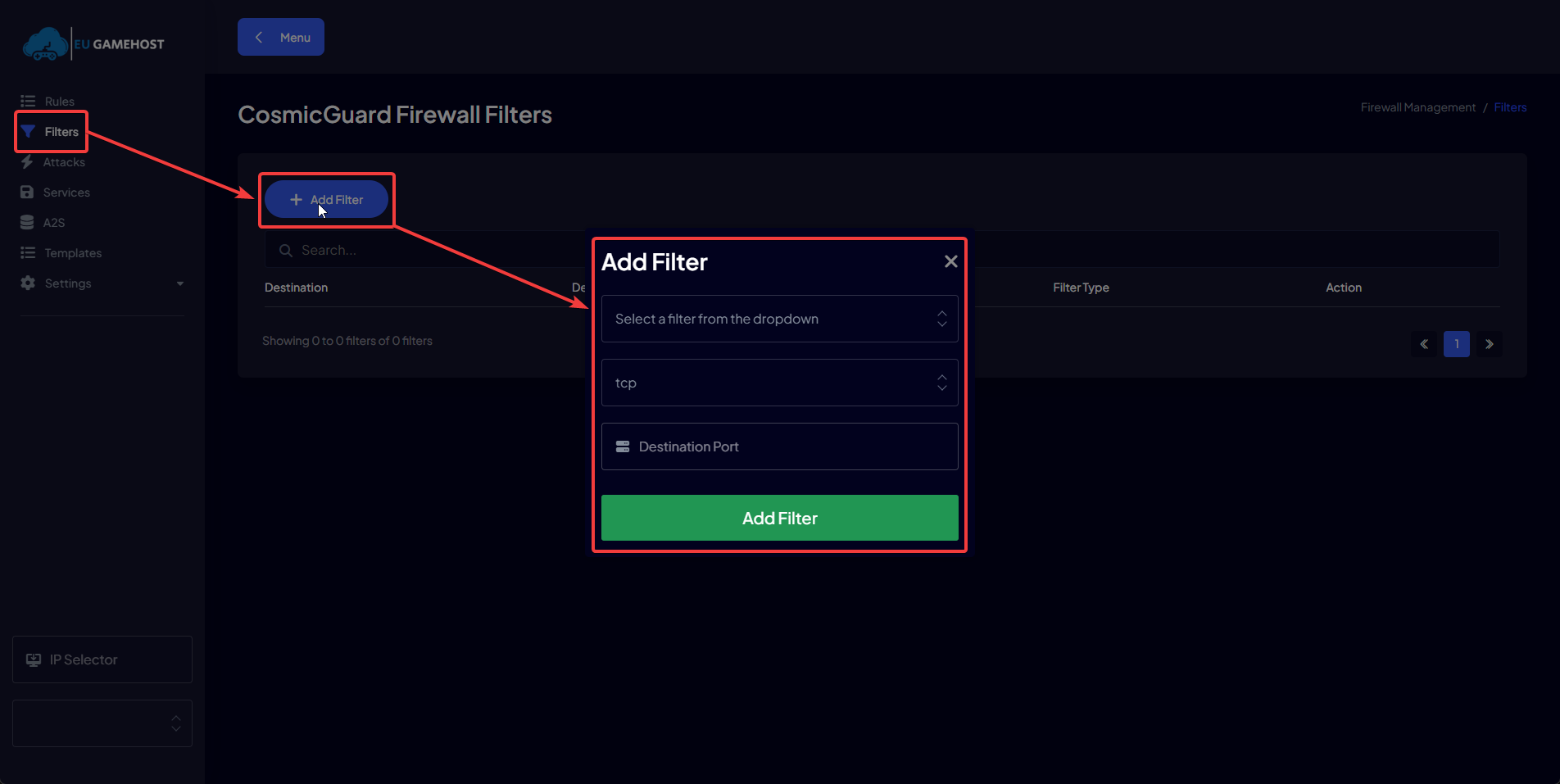
Now to open your SSH or Windows RDP port you'll want to open the dropdown menu and scroll down till you find the "SYN Proxy" filter, once you have you'll want to select it.
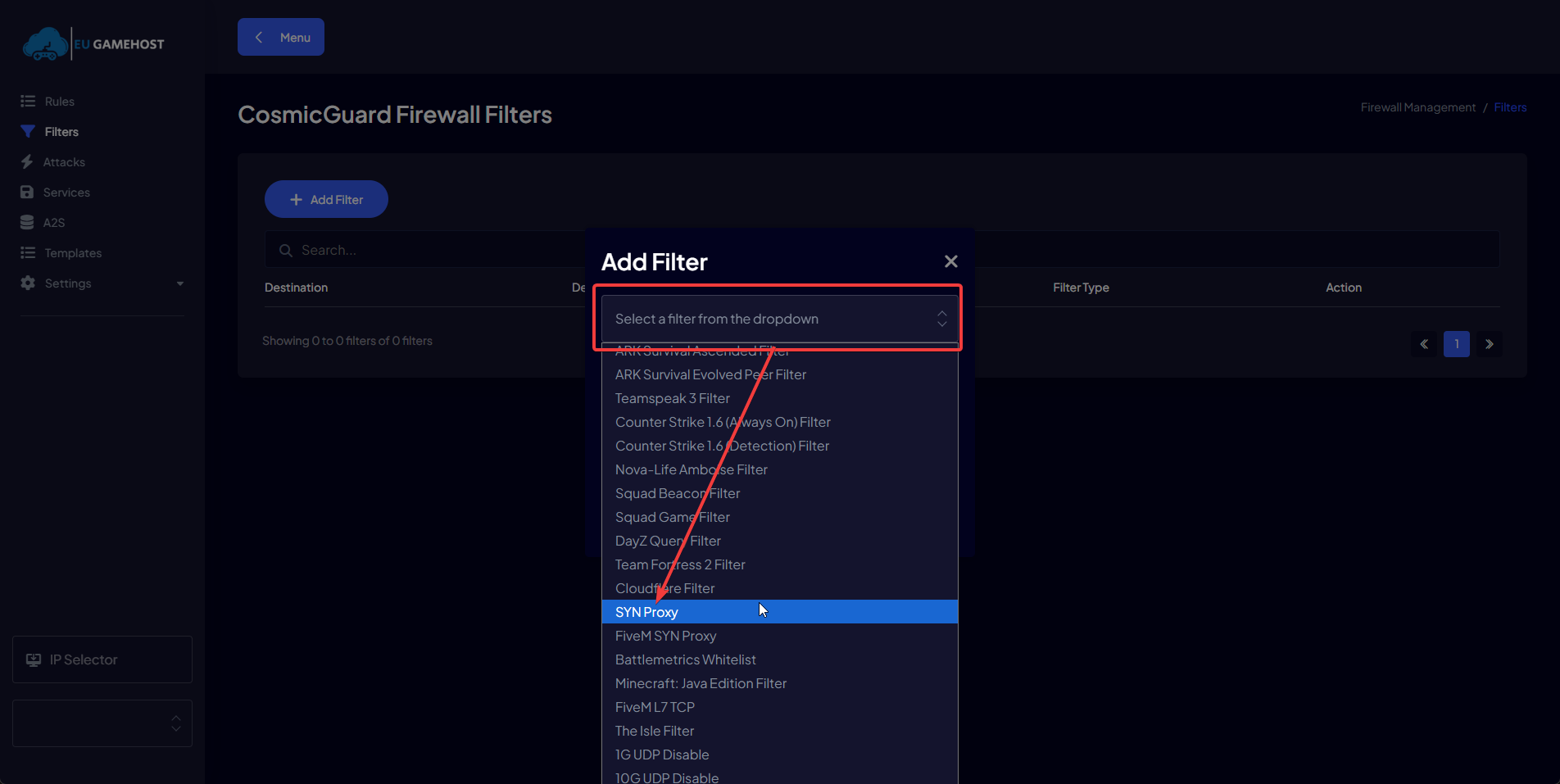
Now you've selected SYN Proxy Filter, you can leave the "protocol" (TCP/UDP) as TCP. you do not need to change this.
Next up in the "Destination Port" you'll want to enter the correct port depending on what OS you installed. Heres a table below to show you which port is required.
| Port | Protocol | Operating System | Description |
|---|---|---|---|
| 22 | TCP | Linux | SSH (Secure Shell) |
| 3389 | TCP | Windows | RDP (Remote Desktop) |
Enter the port you require in the "Destination Port" box, in my example we'll be using windows RDP, which is port 3389, it should look like this once completed:
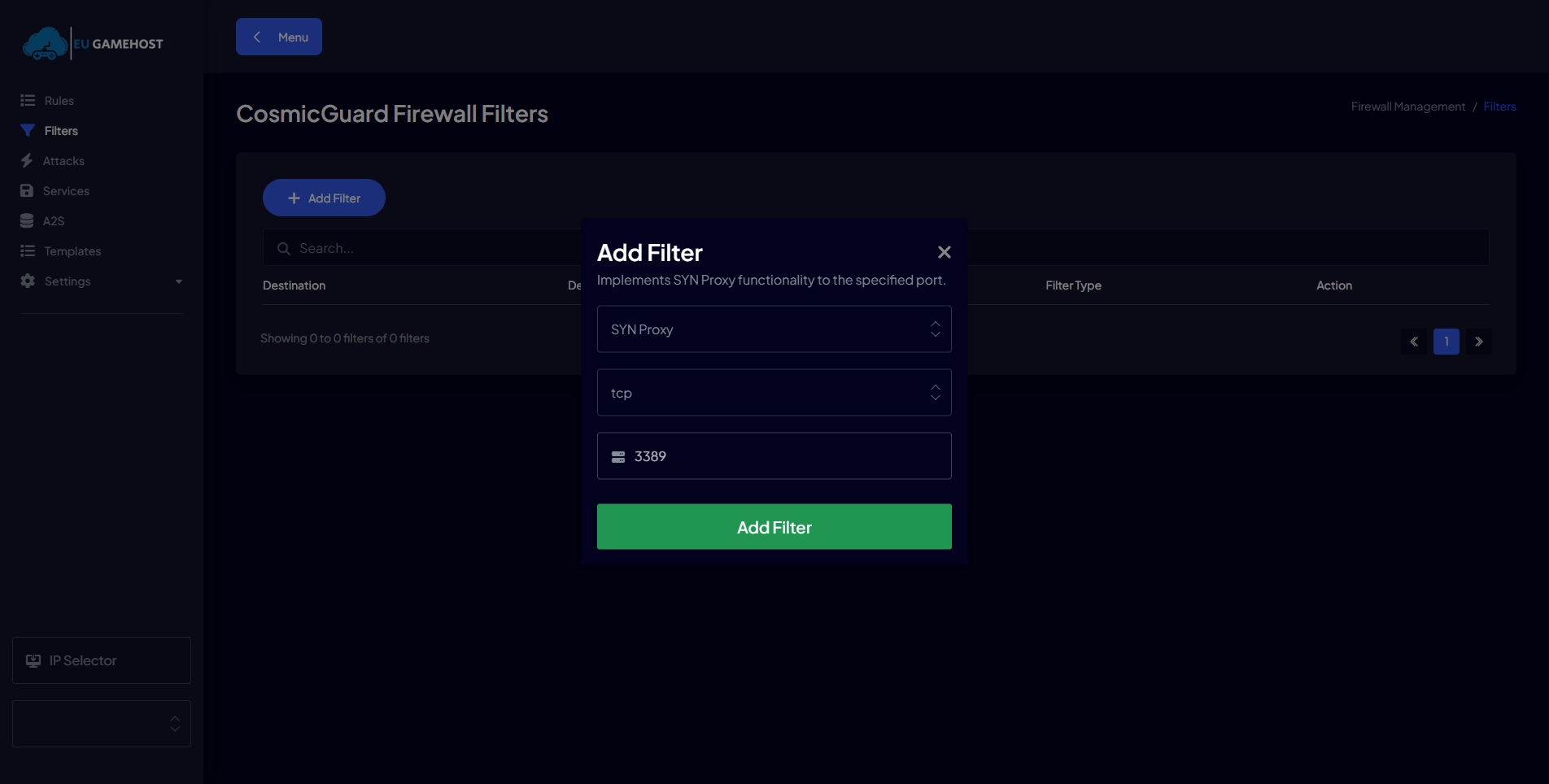
Then just hit "Add Filter" - from there you'll be able to now open a RDP session or connect to your server via SSH.
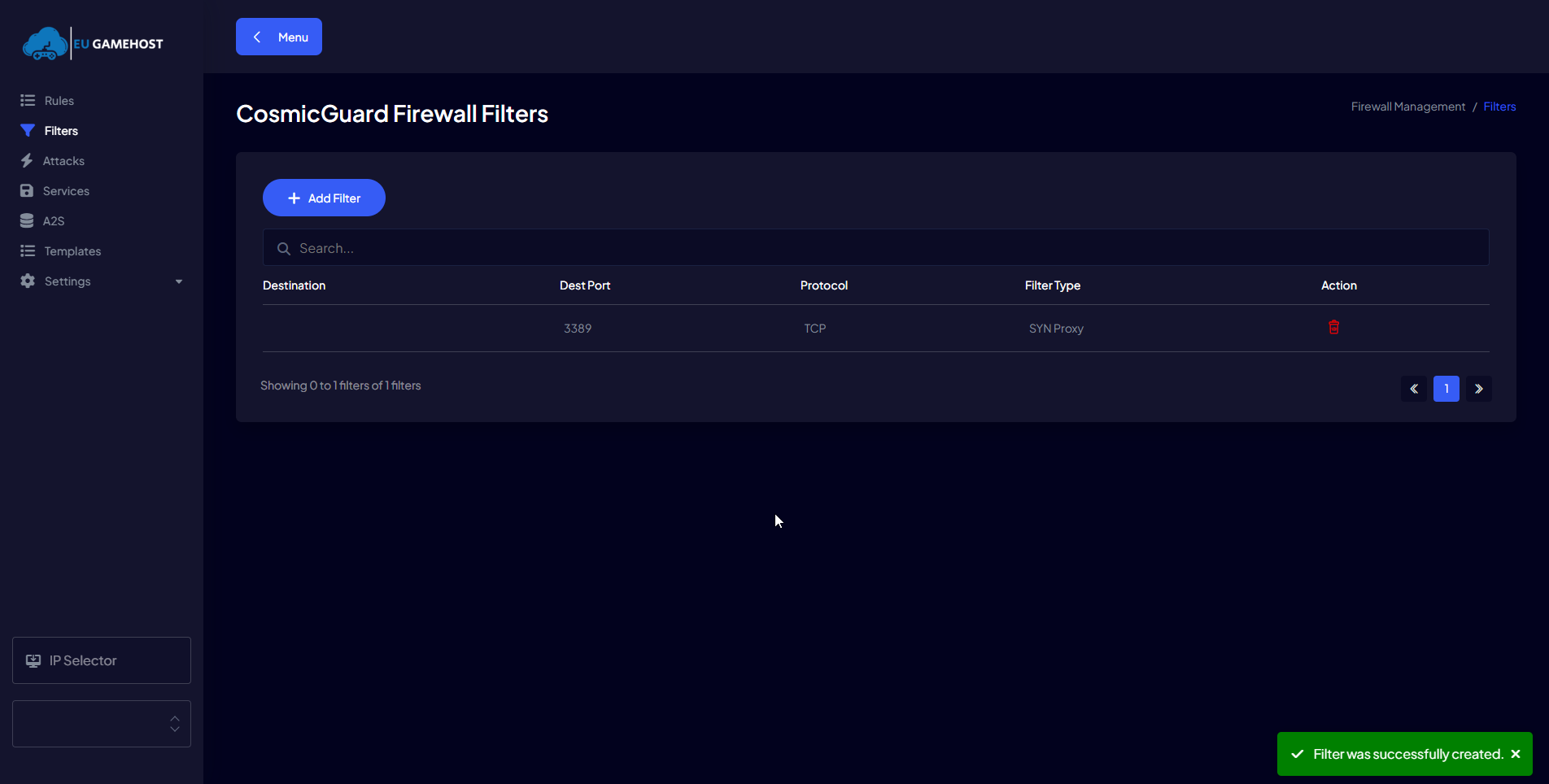
Summary
You've now successfully opened your RDP or SSH port using the EUGameHost Firewall Manager. Whether you're connecting to a Windows server via RDP or a Linux server via SSH, your firewall is now configured to allow remote access. If you run into issues connecting, double-check the filter settings and make sure the correct port is open. For added security, remember to restrict access to trusted IPs only whenever possible.