
Simple Windows Batch Scripts to Automate Common Admin Tasks
If you manage game servers or VPS environments on Windows, chances are you're repeating a lot of the same manual tasks: starting servers, backing up files, checking for updates, restarting services, and more. Why not automate them with simple batch scripts?
Start Your Server Automatically
This script launches your game server executable with custom parameters. Just update the path and arguments.
@echo off
cd /d "C:\MyGameServer\ServerFiles"
start MyServer.exe -port 27015 -maxplayers 64
Save as start_server.bat
Stop Your Server Gracefully (with Taskkill)
Use this to close your server if it doesn’t have a built-in shutdown command.
@echo off
taskkill /IM MyServer.exe /F
Save as stop_server.bat
Backup Saved Game Files
Simple script to copy your saved data into a dated folder automatically.
@echo off
set SOURCE="C:\MyGameServer\ServerFiles\Saved"
set BACKUP="D:\Backups\%date:~10,4%-%date:~4,2%-%date:~7,2%_%time:~0,2%%time:~3,2%"

mkdir %BACKUP%
xcopy /E /I /Y %SOURCE% %BACKUP%
Save as backup_saves.bat
Check for Updates via SteamCMD
This assumes SteamCMD is installed. Replace app ID with your specific game server’s.
@echo off
set STEAMCMD="C:\steamcmd\steamcmd.exe"
set INSTALL_DIR="C:\MyGameServer\ServerFiles"

%STEAMCMD% +login anonymous +force_install_dir %INSTALL_DIR% +app_update 123456 validate +quit
Save as update_server.bat
Auto-Restart Server on Crash
Basic loop that checks if the server closes and reopens it automatically.
@echo off
:loop
start /wait MyServer.exe -port 27015 -maxplayers 64
echo Server crashed. Restarting in 5 seconds...
timeout /t 5
goto loop
Save as auto_restart.bat
Summary
Batch scripts are simple but incredibly powerful for server admins. These examples give you the core tools to automate server launch, shutdown, backup, updates, and crash handling—without installing anything extra.
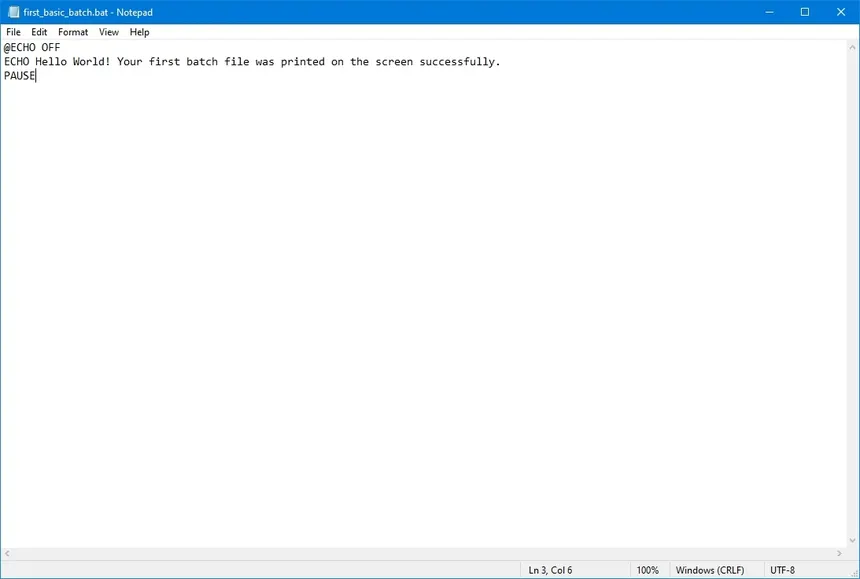
Just open Notepad, paste in the scripts, and save as .bat files. Then run manually, or schedule with Windows Task Scheduler for full automation.