The short answer
Press F1 and type perf 1 to see your frame rate. Then set shadows to Low or
Off, turn off grass displacement, lower water quality, and switch off bloom, lens dirt and
motion blur. Change one thing at a time so you can tell what worked.
Key points
- Measure with
perf 1or you are guessing. - Shadows and grass are usually the two most expensive settings.
- Change one setting at a time. Batched changes teach you nothing.
- Lowering resolution is the most predictable single change available.
- If the frame rate is fine but the game feels bad, look at the server, not the client.
Measure first with perf 1
Before changing anything, get a number. Press F1 to open the console and type:
perf 1That puts a live frame rate and system metrics on screen. Higher values show more detail, which is useful once you want to know where the time is going rather than just how much of it there is.
The discipline that makes this worthwhile: change one setting, then look at the number again in a comparable situation. Standing in an empty field is not the same test as standing in a large base compound, so use somewhere consistent and busy enough to be representative.
What Rust wants from a PC
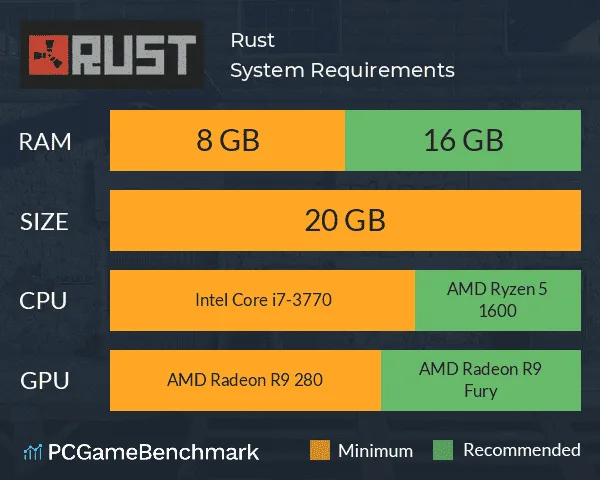
Rust is a demanding game. The figures below are what makes it comfortable rather than the bare minimum it will launch on.
- Operating system
- 64-bit Windows 10 or newer.
- Processor
- Intel i5 or AMD Ryzen 5 or higher.
- Memory
- At least 16GB DDR4.
- Graphics
- DirectX 11 compatible GPU with 2GB VRAM or more.
- Storage
- 10GB on an SSD, for faster load times.
Graphics settings that cost frames
Resolution
Lowering your screen resolution is the most predictable single change you can make, because it reduces the GPU's workload directly rather than adjusting one effect. Try:
- 1600x900
- 1280x720
This frees up resources so your system spends them on game processing rather than on rendering more pixels than you need.
The individual settings
These are roughly in order of how much they typically cost, though it varies by system.
- Shadows
- Set to Low or Off. Usually the single most expensive setting in the menu.
- Grass displacement
- Disable it. Meaningful gain, and almost no visual difference in normal play.
- Water quality
- Lower it, particularly if you do not spend much time near water.
- Anti-aliasing
- Reduces jagged edges but costs frames. 2x or 4x is a reasonable balance rather than turning it off entirely.
- Texture quality
- Lowering it speeds up load times without a drastic hit to how the game looks.
- Mesh quality
- Lower this for performance with minimal visual impact.
Post-processing effects
Turn these off. They cost frames for a stylistic layer many players prefer without:
- Bloom
- Lens dirt
- Motion blur
Launch options
- Disable V-Sync
- Reduces input lag and lets your GPU run at full potential rather than being capped to your monitor's refresh rate.
- Borderless windowed
- Use the
-windowed -noborderlaunch options. A small gain, and it makes alt-tabbing considerably less painful.
Drivers and system housekeeping
Worth doing before you conclude you need new hardware, because it is free.
- Update your graphics drivers. NVIDIA or AMD. Driver updates for a game as actively developed as Rust are not a formality.
- Uninstall programs you do not use. Particularly anything that starts with Windows and sits in the background.
- Turn off Windows visual effects. Animations and transparency cost a little, and you are not looking at the desktop while playing.
- Close background applications. Browser tabs in particular are heavier than most people assume.
Where hardware upgrades help
Upgrades help most when they remove a specific bottleneck. Buying the component that was not the problem is an expensive way to learn nothing, so work out which one is holding you back first.
- RAM
- If you run out of memory while playing, adding more removes the stuttering that causes. If you already have headroom, more will not help. Check your actual usage in-game before buying.
- Graphics card
- The right upgrade if
perf 1shows you GPU bound, particularly at higher resolutions and settings. - Storage
- Moving to an SSD mainly improves load times and reduces hitching when the game streams assets. It does not raise a steady-state frame rate.
- CPU
- Rust leans hard on single-thread performance, so clock speed matters more than core count here too. A faster CPU is often the answer when frame rates drop in busy areas specifically.
How much any given upgrade gains you depends entirely on what you are upgrading from and
what was limiting you. Anyone quoting a specific percentage without knowing your system is
guessing. Use perf 1 to find your own bottleneck rather than buying to a
number.
Everything else
- NVIDIA DLSS
- If you have a compatible NVIDIA card, DLSS in a performance mode can give a substantial boost by rendering at a lower internal resolution and upscaling.
- Server location
- Playing on a server close to you minimises latency. That is not frame rate, but it changes how responsive the game feels far more than a few frames either way.
- Server performance
- A struggling server produces rubber-banding and late hit registration that no client setting will fix. If
perf 1looks healthy and the game still feels wrong, the problem is at the other end.
If you run the server yourself, our guide on improving Rust server performance covers the convars and plugin habits that determine how it feels to everyone playing on it.